

Written By: Auri Rahimzadeh, Principal Software Architect
When Copilot Hits Its Limits
At this time, many of us have at least started dabbling, if not fully embraced, coding agents such as Copilot in our day-to-day lives. I’ve certainly woven Copilot into my daily routine.
Recently, I found myself hitting the edges of Copilot’s capabilities. I needed AI to read in transcripts when generating some documentation. Unfortunately, all the transcripts were in Word format, not the native Markdown or text formats the AI required. Now what?
First, I converted every document from Word to Markdown. Great, problem solved. But what about future documents? It’s a pain, especially considering Word itself has no Markdown export functionality. Seriously, Microsoft?
And then I wondered: why don’t I just use an MCP to handle this?
What Is an MCP?
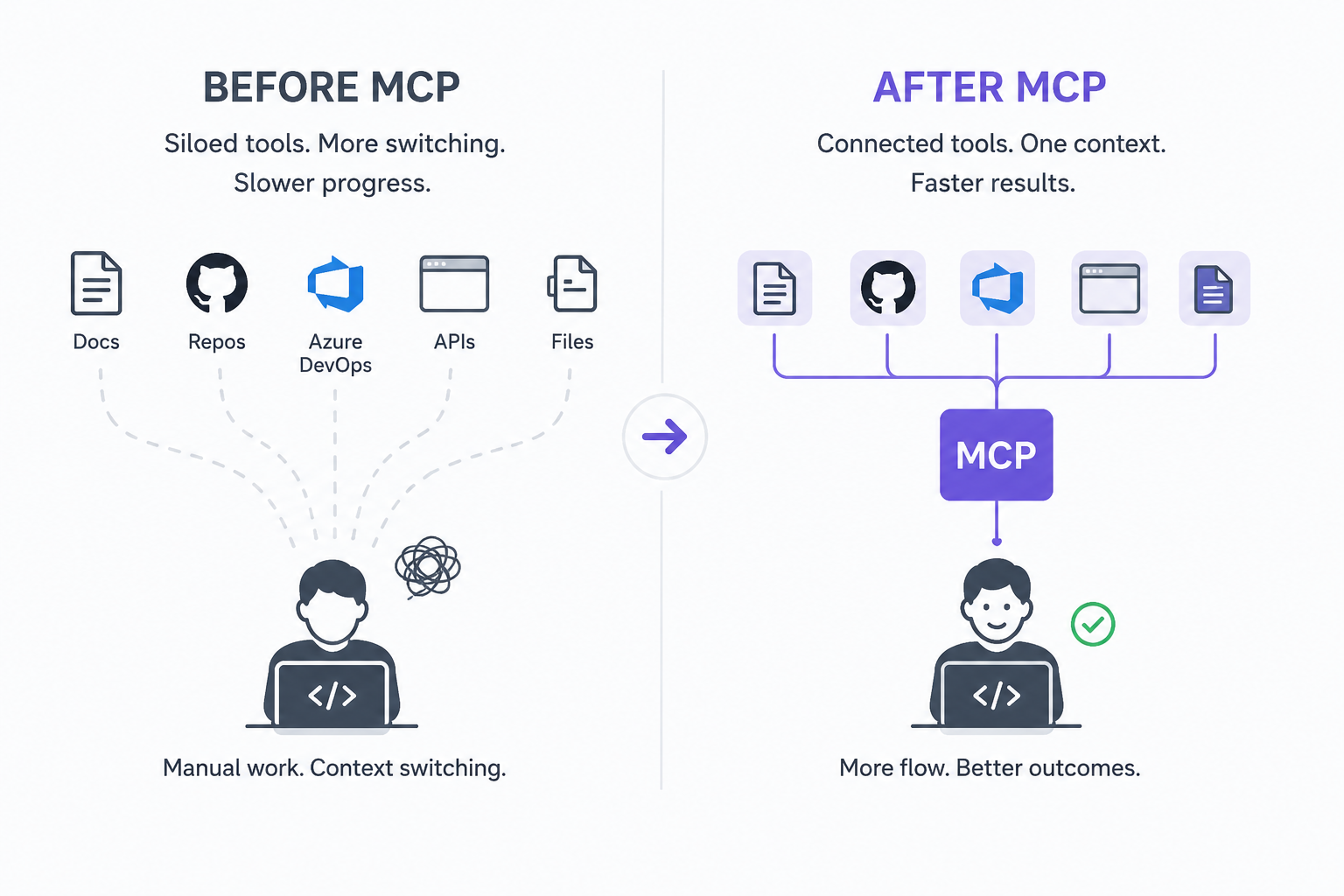 If you’re not familiar with MCPs, they’re like APIs for coding agents. You can also look at them as extensions for coding agents. They’re even installed similarly to Visual Studio extensions.
How MCPs Work in Prompts
MCPs can be targeted directly in your prompts by @mentioning them, or their usage can be inferred.
For example, Context7, an MCP that ensures the latest code examples are used, is often called when I ask for “ensure the latest code examples are referenced.”
This is often necessary even with newer models, as .NET 10 / C# 14 are quite new and examples may not even exist in training datasets. I can even include prompt hints such as “ensure we’re following Microsoft and Azure best practices” and it will, if installed, reach out to Microsoft Learn, Microsoft Best Practices, and Microsoft Azure Best Practices MCPs for the most accurate and up-to-date information.
Finding and Managing MCPs
For discoverability and usage, there’s an extensions gallery built into VS Code and Visual Studio to easily search and install MCPs you want to use.
Because they are so specific, and because you may have many installed, you can specify which MCPs are used in each project. This is important, as sometimes certain MCPs are not necessary, and you don’t want to have to manually enable or disable them as you switch projects.
My First MCP Use Case
In this case, I ended up writing my own MCP. Wait for it......
I vibe-coded an MCP and then, umm, learned how it worked. It was quite cool, it worked, and did the job.
Then I told Don Boyle, another M3 PTO and resident AI pro, and he suggested an MCP that already exists: MarkItDown.
He also shared this helpful GitHub MCPs link, which includes a searchable registry of MCP servers that connect AI models to tools like files, APIs, databases, GitHub, Azure DevOps, Figma, Microsoft Learn, and more.
Explore the GitHub MCP directory >>> https://github.com/mcp
MCPs Worth Trying
Context7 provides up-to-date code documentation and examples for prompts.
MarkItDown converts various file formats, including PDF, Word, Excel, images, and audio, into Markdown. Some formats may require an API key because third-party services are used for conversion.
GitHub connects your agent directly to GitHub repositories, code, issues, and related development context.
Azure DevOps provides access to code, work items, builds, releases, test plans, and code search.
Desktop Commander allows agents to execute terminal commands, manage file operations, and control processes.
Microsoft Learn provides trusted, current information directly from Microsoft Learn.
Figma brings Figma design context directly into chat.
Stack Overflow connects agents to Stack Overflow knowledge and Q&A context.
Firecrawl supports web scraping, search, content extraction, deep research, and browser automation.
Are You Using MCPs?
Are you using MCPs now? If not, try them out and let the team know what you think, along with any new MCPs you’ve found.
Have questions about MCPs or want to talk through where to start?
Reach out to Auri or Don for help with practical MCP setup, usage questions, AI strategy, and best practices.